

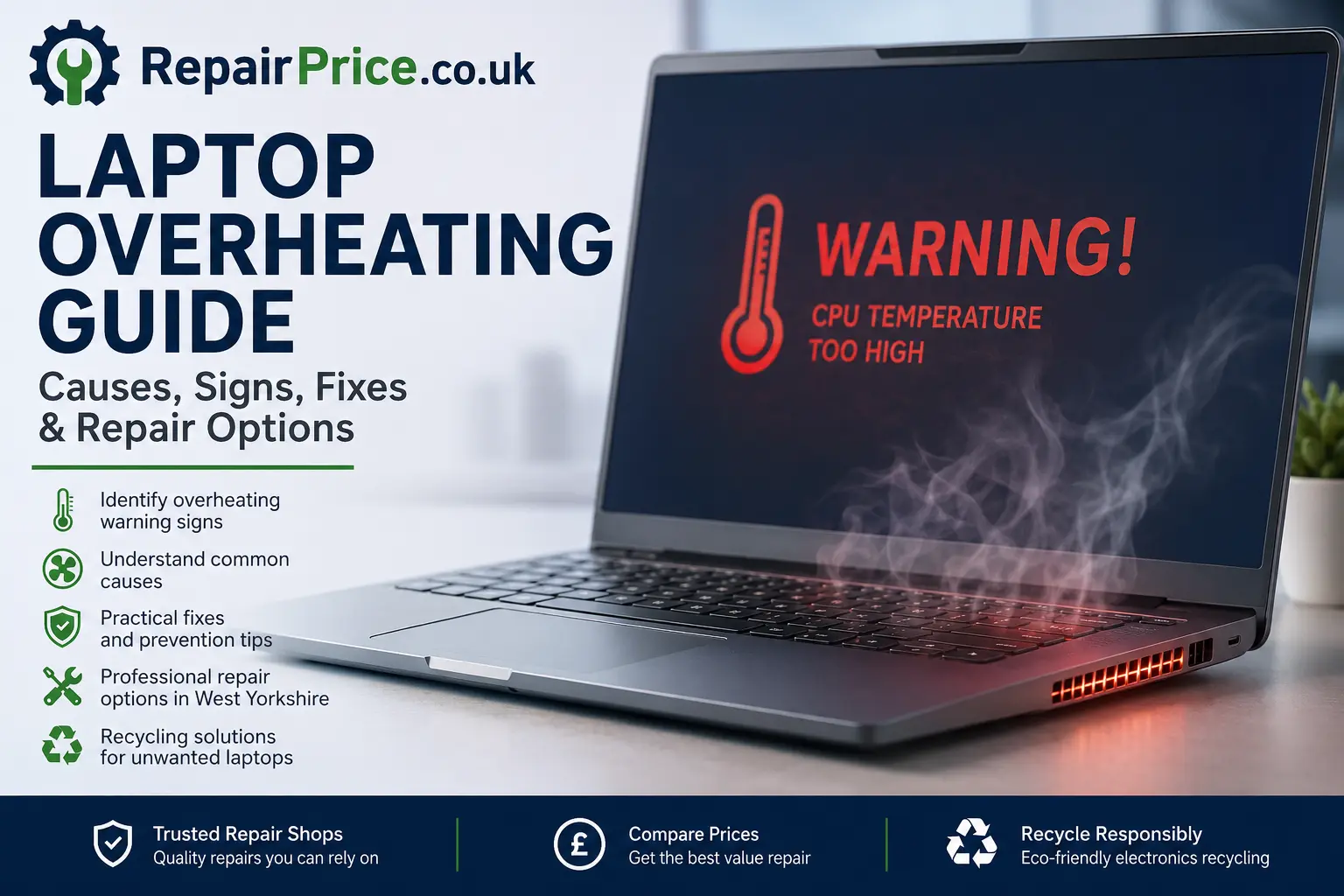
Laptop Overheating Guide: Causes, Warning Signs, Fixes and Repair Options
A laptop that becomes warm during demanding tasks is not always faulty. However, excessive heat, loud fan noise, unexpected shutdowns, slow performance or a burning smell can indicate a cooling system problem that should not be ignored. Continued overheating can damage the battery, processor, graphics chip, motherboard and other internal components.
This laptop overheating guide explains why laptops become too hot, which warning signs to look for, what you can safely check at home and when professional repair may be the most cost-effective option. You can also learn what to do with a laptop that is no longer economical to repair, including responsible recycling and circuit board recovery.
Need Help with an Overheating Laptop?
If your laptop repeatedly shuts down, becomes extremely hot or produces unusually loud fan noise, request advice before the fault causes further damage. RepairPrice.co.uk can help you compare support from suitable laptop repair shops.
Ask About Your Overheating Laptop on WhatsApp
Why Is My Laptop Overheating?
Laptops contain powerful components inside a compact case. The processor, graphics chip, battery, storage drive and charging system all generate heat. A working cooling system moves this heat away from sensitive components using thermal paste, heat pipes, cooling fans and ventilation openings.
Overheating usually occurs when heat is generated faster than the laptop can remove it. This may be caused by blocked vents, dust inside the cooling system, a worn fan, dried thermal paste, demanding software, malware, battery problems or internal component failure.
The correct solution depends on the source of the heat. Cleaning the outside of the laptop may help when the ventilation openings are lightly obstructed, but it will not repair a failed fan, damaged heat pipe or motherboard-level fault. For persistent problems, use the main laptop repair comparison service to explore suitable repair options.
Common Signs of Laptop Overheating
One of the first warning signs is a cooling fan that runs at high speed even when only a few basic programs are open. The laptop may feel particularly hot around the keyboard, underside, charging port or rear ventilation area.
Performance can also become inconsistent. Modern processors reduce their operating speed when temperatures rise too far. This protective behaviour, commonly called thermal throttling, can make applications freeze, games stutter and everyday tasks take longer than expected.
More serious symptoms include random restarts, sudden shutdowns, display problems, battery warnings and an electrical or burning smell. Stop using the laptop immediately if you notice smoke, swelling, sparking or a strong chemical smell. Disconnect the charger if it is safe to do so and arrange professional inspection.
Blocked Air Vents and Restricted Airflow
Laptop vents can easily become blocked when the device is used on a bed, sofa, carpet, blanket or other soft surface. These materials restrict airflow and can also allow fibres and dust to enter the cooling system.
Place the laptop on a clean, hard and stable surface. Check that the ventilation openings are not pressed against a wall or covered by paperwork. Raising the rear of the laptop slightly may improve airflow, but it should not be treated as a permanent repair if the laptop continues to overheat.
A cooling pad can sometimes lower operating temperatures, especially during gaming or video editing. However, an external pad cannot compensate for a broken internal fan, dried thermal compound or a heatsink that is packed with dust.
Dust Inside the Laptop Cooling System
Dust is one of the most frequent causes of laptop overheating. Air drawn through the laptop carries dust, fibres and small particles into the cooling assembly. Over time, this material can form a dense blockage between the fan and heatsink fins.
The laptop may still sound as though the fan is working, but very little hot air may leave the exhaust vent. In severe cases, the fan has to spin continuously because heat cannot escape efficiently.
Opening a laptop for internal cleaning requires care. Modern devices may contain fragile clips, short ribbon cables, concealed screws and batteries that should be disconnected before other components are handled. Incorrect disassembly can damage the casing, keyboard, trackpad, battery connector or motherboard.
Cooling Fan Failure
A damaged cooling fan may stop spinning, run intermittently or produce grinding, clicking and rattling noises. Fan bearings can wear out, blades can become obstructed and electrical connections can fail.
Some laptops display a fan error when they start. Others simply become hot and shut down without giving a clear warning. Replacing the fan normally requires the correct part for the exact laptop model because fan shapes, connectors, mounting points and airflow designs vary between manufacturers.
Owners of compatible models can explore dedicated support through our HP laptop repair specialists, Dell laptop fault repair service, ASUS laptop repair options and Acer laptop repair network.
Dried or Poorly Applied Thermal Paste
Thermal paste helps transfer heat from the processor or graphics chip into the cooling assembly. As a laptop ages, the compound may dry out, crack or become less effective. Temperatures can then rise quickly, even when the fan and vents appear clean.
Replacing thermal paste involves removing the cooling assembly, cleaning the old compound and applying the correct amount of suitable replacement material. Too much paste, too little paste or uneven heatsink pressure can reduce cooling performance.
This work should be completed carefully because processor dies, thermal pads, fan cables and motherboard components can be damaged by poor handling. A technician can also inspect the heat pipes and heatsink mounting points while the device is open.
Software, Background Tasks and High Processor Usage
Not every overheating problem is caused by a physical defect. Software running continuously in the background can keep the processor or graphics chip under heavy load. Operating system updates, cloud backups, browser tabs, video calls, games and editing software can all increase temperatures.
Check the operating system’s task management utility to identify applications using an unusually high percentage of the processor, memory or graphics resources. Close programs you do not need and restart the laptop to clear temporary processes.
Run a reputable security scan if the laptop becomes hot while apparently idle. Malware, unwanted browser extensions and cryptocurrency mining software can consume system resources without an obvious explanation.
Software troubleshooting should reduce unnecessary workloads, but it will not correct damaged cooling hardware. If temperatures remain excessive after applications have been closed, the laptop may need internal inspection.
Battery and Charging Problems
A faulty battery or charging circuit can produce excess heat. Warning signs include rapid battery drain, a case that no longer sits flat, trackpad movement, unusual pressure around the keyboard or a battery percentage that changes unexpectedly.
A swollen battery is a safety concern. Do not press down on the casing, puncture the battery or continue charging the laptop. Arrange professional removal and replacement as soon as possible.
Heat concentrated around the charging socket may also indicate a damaged connector, unsuitable power adapter or motherboard charging fault. Our guide to laptop charging port repair explains the symptoms associated with loose, intermittent and heat-damaged charging connections.
Motherboard and Graphics Chip Heat Problems
Overheating can sometimes be linked to a motherboard defect rather than a simple ventilation issue. Damaged power-management components, short circuits and graphics chip faults can create localised heat or cause the laptop to shut down under load.
Motherboard faults usually require diagnostic equipment and component-level knowledge. Replacing parts without testing can increase the total cost without solving the underlying problem.
Read our detailed laptop motherboard repair guide to understand common board faults, diagnostic procedures and factors that influence whether component-level repair is worthwhile.
Can You Fix an Overheating Laptop at Home?
There are several low-risk checks that most users can perform. Shut the laptop down, disconnect the charger and allow the device to cool. Move it to a hard surface, check the external vents and remove loose surface dust using a soft brush.
You can also install operating system updates, update essential device drivers and reduce unnecessary startup programs. Avoid downloading unverified temperature tools, fan-control programs or supposed optimisation software from unknown websites.
Do not insert metal objects into the vents or spray liquid cleaner into the laptop. Household vacuum cleaners can produce static electricity, while high-pressure air can force debris deeper into the device or spin the cooling fan at an unsafe speed.
Stop home troubleshooting if the laptop has a swollen battery, burning smell, damaged charger, liquid exposure or repeated shutdowns. These symptoms require professional assessment.
What Happens If Laptop Overheating Is Ignored?
Repeated exposure to excessive temperature can shorten the lifespan of several components. Batteries may deteriorate faster, thermal paste can become less effective and solder joints may be placed under repeated expansion and contraction stress.
Unexpected shutdowns can also corrupt files or interrupt operating system updates. In severe cases, overheating may contribute to graphics failure, motherboard damage or storage problems.
Early investigation is often less expensive than waiting for a complete failure. A cooling system clean, fan replacement or thermal service may protect more valuable components from additional damage.
How Much Does Laptop Overheating Repair Cost?
The price depends on the fault, laptop design, replacement parts and amount of labour required. External cleaning and software optimisation are generally less involved than fan replacement, heatsink work or motherboard repair.
Repair shops may need to inspect the laptop before giving an accurate price because identical symptoms can have different causes. For example, loud fan noise could be caused by dust, bearing wear, software load or a temperature sensor fault.
Use the quote service below to provide the laptop make, model and symptoms. Include details such as when the overheating started, whether the laptop shuts down and whether the fan makes unusual noises.
Compare Quotes for Laptop Overheating Repair
Laptop Overheating Repair in West Yorkshire
RepairPrice.co.uk helps customers find repair support across West Yorkshire. Local availability, diagnostic processes and turnaround times can vary, so provide as much information as possible when requesting a quote.
Customers in Bradford can explore Bradford laptop overheating repair options. For nearby support, visit our pages for laptop repair services in Leeds, Halifax laptop repair shops, Wakefield laptop fault assistance and Huddersfield laptop repair providers.
Should You Repair or Replace an Overheating Laptop?
Repair may be the better option when the laptop still performs well, meets your requirements and only needs cooling maintenance or a replacement fan. It may also be sensible when the device contains valuable software, files or upgradeable components.
Replacement may deserve consideration when the laptop has several major faults, severe motherboard damage, a broken display and an exhausted battery at the same time. The age, specification, condition and availability of replacement parts should all be considered.
Our laptop repair versus replacement guide can help you compare repair costs, device age, performance requirements and environmental impact before deciding.
Back Up Your Files Before Repair
Where possible, back up important files before submitting a laptop for repair. Overheating and unexpected shutdowns can increase the risk of file-system errors, particularly if the device loses power while saving data.
Copy essential documents to a secure external drive or trusted cloud service. Avoid repeatedly switching on a laptop that shuts down within minutes, as continued use may make the fault worse.
If the laptop will not remain powered on, tell the repair shop that important data is stored on the device. Data recovery is a separate service and cannot always be guaranteed.
Related Device Repair Services
Heat, charging and battery problems can affect other electronic devices as well. RepairPrice.co.uk also provides access to mobile phone repair services, tablet repair specialists and game console repair providers.
Using a specialist familiar with the device category can improve fault identification because cooling systems, battery designs and internal layouts differ significantly between laptops, phones, tablets and consoles.
Recycle a Laptop That Cannot Be Repaired
A laptop that is beyond economical repair should not be placed in a household rubbish bin. Laptops contain metals, plastics, batteries, circuit boards and electronic components that require responsible processing.
Visit our dedicated laptop recycling service to learn how unwanted, damaged and obsolete laptops can be handled. You can also view our wider electrical recycling options for other devices and electronic equipment.
Before recycling a laptop, consider removing personal data. Depending on the condition of the device, this may involve securely erasing the storage drive or physically removing it. Ask for advice if the laptop no longer switches on or the drive cannot be accessed normally.
Recovering Laptop Circuit Boards
Laptop motherboards contain a complex mixture of metals and electronic components. When a board cannot be repaired or reused, specialist processing can help recover useful material and reduce unnecessary electronic waste.
Our laptop circuit board recycling information explains how unwanted laptop boards can be assessed and processed. Suitable high-grade boards may also fall within categories covered by our Class 3 circuit board recycling service.
Do not burn, crush or dismantle circuit boards using unsafe tools or chemical processes. Professional recycling is designed to manage electronic components more responsibly.
How to Reduce the Risk of Future Overheating
Use the laptop on a hard surface and keep ventilation openings clear. Avoid smoking near the device and reduce exposure to dusty environments where possible. Store the laptop in a clean, dry location when it is not being used.
Review running applications regularly and remove software you no longer need. Keep the operating system and security software updated, and use the correct charger recommended for the laptop.
Listen for changes in fan noise and investigate rising temperatures before the device begins shutting down. Preventive cleaning may be beneficial for laptops used in workshops, homes with pets or other environments where dust and fibres accumulate quickly.
Frequently Asked Questions About Laptop Overheating
Is it normal for a laptop to get hot?
Some warmth is normal during gaming, video editing, software installation and other demanding tasks. It becomes a concern when the laptop is painful to touch, shuts down, produces a burning smell or remains extremely hot during light use.
Why does my laptop fan run constantly?
The fan may be responding to high processor usage, restricted airflow, dust accumulation, outdated software, dried thermal paste or a faulty temperature sensor. A diagnostic inspection may be needed if basic software and ventilation checks do not help.
Can overheating permanently damage a laptop?
Yes. Although laptops include protective controls, repeated overheating can shorten battery life and contribute to motherboard, processor, graphics and storage problems.
Will a cooling pad fix the problem?
A cooling pad may improve airflow and slightly reduce temperatures, but it will not repair a failed internal fan, damaged heatsink, swollen battery or motherboard fault.
Should I continue using a laptop that keeps shutting down?
No. Repeated thermal shutdowns indicate that the laptop is protecting itself from excessive heat. Continued use could worsen the fault and increase the risk of data loss.
Get the Right Solution for an Overheating Laptop
Laptop overheating should be investigated before it develops into a more expensive failure. Begin with safe checks such as improving airflow, reducing unnecessary software activity and checking the external vents. Arrange professional diagnosis if the laptop remains hot, becomes noisy, slows down or shuts off unexpectedly.
RepairPrice.co.uk can help you explore repair options for cooling fans, internal cleaning, thermal servicing, charging faults and motherboard problems. When repair is no longer practical, use the linked laptop and circuit board recycling services to keep unwanted electronics out of general waste.