

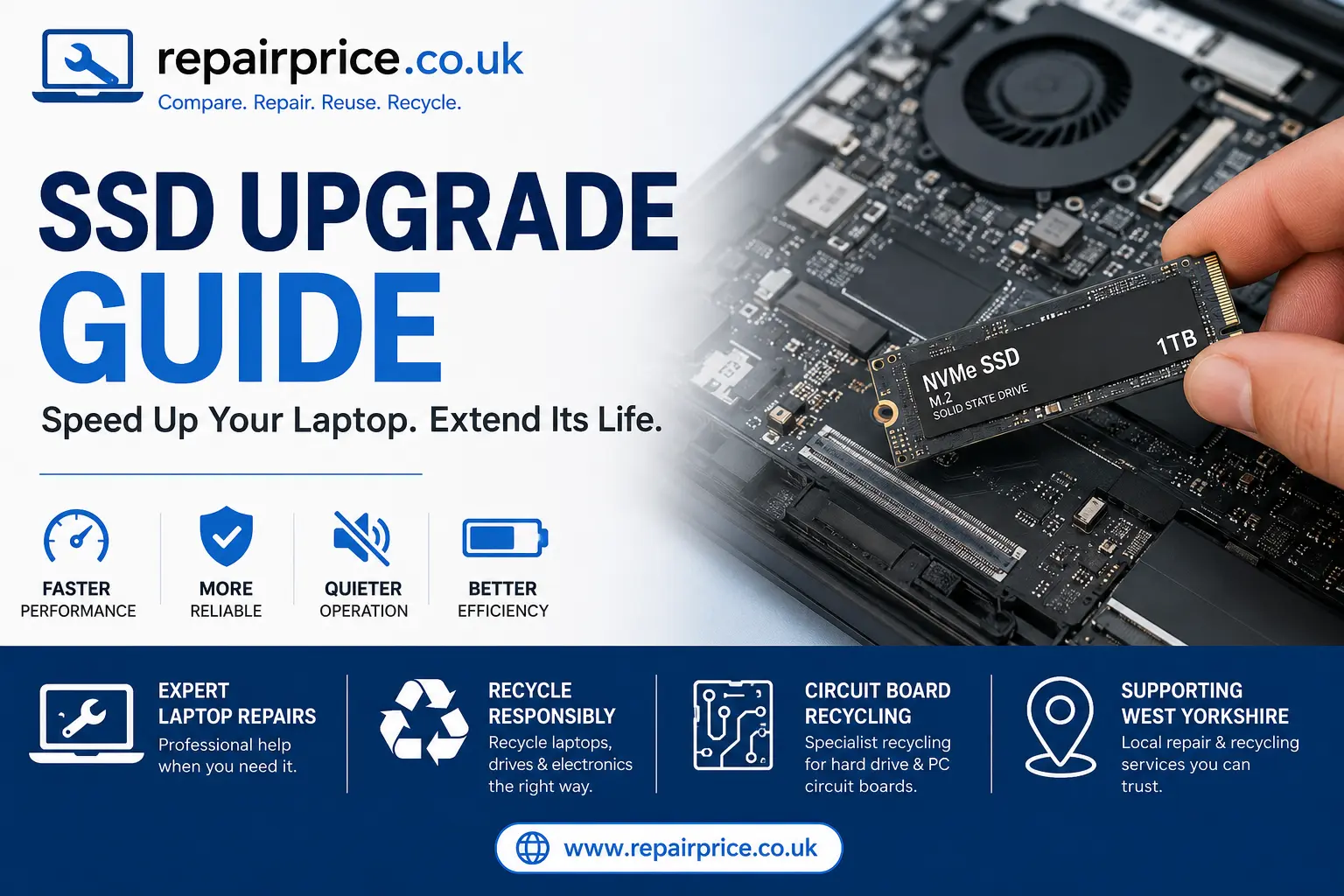
SSD Upgrade Guide: How to Make Your Laptop Faster and More Reliable
A slow laptop does not always need replacing. In many cases, upgrading the existing storage drive to a solid-state drive can dramatically improve startup times, application loading, file transfers and everyday responsiveness. This SSD upgrade guide explains how the process works, which type of drive your laptop may require, what an upgrade can improve and when professional assistance is recommended.
Traditional mechanical hard drives store information on spinning disks. Although they can provide large amounts of storage at a relatively low cost, their moving components are slower and more vulnerable to physical damage. A solid-state drive has no moving parts and accesses stored information electronically, allowing compatible laptops to operate much more quickly.
Before purchasing a replacement drive, it is important to check your laptop model, storage interface, available space and current operating system. Choosing an incompatible SSD or attempting installation without backing up important data could result in wasted money, lost files or damage to the laptop.
Ask About an SSD Upgrade or Laptop Recycling on WhatsApp
What Is an SSD Upgrade?
An SSD upgrade involves replacing an existing hard disk drive or smaller solid-state drive with a faster or higher-capacity SSD. Depending on the laptop, the new drive may replace the original storage device or be installed as an additional drive.
The operating system, programs and personal files can sometimes be cloned from the old drive to the new one. Cloning allows the laptop to retain its familiar settings and software. In other situations, a clean installation of Windows or another operating system may be more appropriate, particularly when the original installation contains corrupted files, unwanted programs or persistent performance problems.
A professional laptop repair and upgrade service can inspect the device, confirm which SSD format it supports and recommend a suitable storage capacity. This is particularly useful when the laptop has a difficult-to-open case, a soldered storage configuration or important files that must be protected during the upgrade.
What Improvements Can an SSD Provide?
An SSD cannot increase the raw processing power of the laptop’s processor or graphics chip. However, it can remove one of the most common performance bottlenecks found in older computers. The difference is often especially noticeable when replacing a mechanical hard drive.
Faster Startup and Shutdown
A laptop fitted with an SSD can usually access system files much faster than one using a traditional hard drive. This can reduce the time required to start Windows, reach the desktop and become ready for use. Shutdowns, restarts and system updates may also complete more efficiently.
Quicker Application Loading
Programs installed on the SSD can open more rapidly because the drive does not need to locate information on a spinning disk. Web browsers, office applications, accounting software and creative programs may all feel more responsive after a successful upgrade.
Improved Multitasking
When physical memory becomes heavily used, the operating system may temporarily move information between the RAM and storage drive. A faster SSD can make this process less disruptive, although laptops with very limited memory may also benefit from a RAM upgrade.
Greater Resistance to Movement
Mechanical drives can be damaged when a laptop is knocked, dropped or moved while the disk is operating. Because an SSD does not contain spinning platters or moving read heads, it is generally better suited to portable devices. It is still important to protect the laptop from impact, liquid and excessive heat.
Reduced Drive Noise
A mechanical hard drive can produce clicking, spinning or humming sounds. An SSD operates silently. However, fan noise may continue if the laptop is running hot, blocked with dust or experiencing a cooling-system fault. Our guide to laptop overheating problems explains the warning signs and possible solutions.
Does Your Laptop Support an SSD?
Many laptops can be upgraded, but SSD compatibility varies between manufacturers and models. The most common formats are 2.5-inch SATA drives and M.2 drives. M.2 drives may use either the SATA or NVMe communication standard, and two drives that look similar may not be electronically compatible.
Older laptops commonly use a 2.5-inch SATA hard drive. In these devices, the original drive can often be replaced by a 2.5-inch SATA SSD of the same physical dimensions. Some slim laptops use an M.2 slot, while certain models contain both a 2.5-inch bay and an M.2 connection.
It is important to check the laptop’s service documentation, model number and motherboard specification before ordering a drive. Owners of supported models can explore dedicated services for HP laptop storage upgrades, Dell laptop SSD installation, Lenovo laptop performance upgrades and Acer laptop drive replacement.
How Much SSD Storage Do You Need?
The right capacity depends on how the laptop is used. A smaller drive may be suitable for web browsing, emails and basic office applications. Larger drives are more appropriate for users storing photographs, videos, games, business documents or creative project files.
- 250GB: Suitable for light use, essential programs and a limited number of personal files.
- 500GB: A practical choice for many home, student and office laptops.
- 1TB: Better for larger software collections, photographs, games and regular file storage.
- 2TB or more: Useful for video editing, extensive media libraries, professional projects or users who want additional long-term capacity.
It is sensible to leave some unused space on the SSD. Filling a drive almost completely can affect performance and make operating-system updates more difficult. Cloud storage or an external backup drive can be used for files that do not need to remain on the laptop permanently.
Should You Clone the Old Drive or Reinstall the Operating System?
Cloning copies the structure and contents of the original drive to the new SSD. This can preserve installed applications, user accounts, desktop layouts and saved settings. It is often the most convenient option when the existing installation is stable and the old drive is still readable.
A clean installation starts with a fresh operating system. This can remove unnecessary software, damaged system files and old configuration problems. The user must normally reinstall applications, restore personal files and configure settings afterwards.
If the original drive is failing, cloning may not complete successfully. Repeated clicking, missing folders, freezing, startup errors or unusually slow file access can indicate storage damage. Continuing to operate a failing drive may reduce the likelihood of recovering important information. Our laptop data recovery guide explains what to do when files become inaccessible.
Back Up Important Files Before Starting
A full backup should be completed before any storage upgrade. Important documents, photographs, videos, passwords, browser bookmarks, email archives and software licence details should be copied to a secure location.
Where possible, maintain more than one backup. For example, files can be stored on an external drive and within a reputable cloud service. The backup should be checked to confirm that the copied files open correctly before the original drive is removed or erased.
If the laptop contains confidential business or customer information, ensure the transfer method meets your organisation’s data-protection requirements. Professional assistance may be appropriate when handling sensitive information or encrypted drives.
Can You Install an SSD Yourself?
Some laptops are relatively simple to upgrade. They may have a removable maintenance cover or clearly accessible storage bay. Other devices require the complete lower casing to be removed, with hidden screws, fragile clips and internal cables creating additional risks.
A do-it-yourself upgrade may be appropriate for someone who has the correct tools, understands anti-static precautions and has checked the manufacturer’s service information. The laptop should be shut down, disconnected from its charger and, where possible, isolated from its internal battery before components are handled.
Professional installation is safer when the laptop is difficult to dismantle, contains important data or requires operating-system migration. Incorrect handling can damage connectors, strip screws, crack the casing or create a short circuit on the motherboard.
Customers seeking help in West Yorkshire can compare options for laptop upgrades in Bradford, SSD installation in Leeds, laptop repairs around Halifax, computer upgrade support in Wakefield and laptop technicians in Huddersfield.
Compare Quotes from West Yorkshire Laptop Repair Shops
SSD Upgrade Steps
The precise procedure varies between laptop models, but a typical upgrade includes the following stages:
- Identify the full laptop model and supported storage interface.
- Select an SSD with the correct physical format, connection and capacity.
- Back up important personal and business files.
- Decide whether to clone the existing system or perform a clean installation.
- Shut down the laptop and disconnect all power sources safely.
- Open the casing using the correct tools and service procedure.
- Remove the old drive and install the compatible SSD.
- Reassemble the laptop and confirm that the new drive is detected.
- Restore or install the operating system.
- Complete updates, check performance and confirm that files are accessible.
If the laptop does not recognise the SSD, the cause may be an incompatible drive, an installation error, a BIOS setting, a damaged connector or a motherboard fault. Repeatedly opening the device without identifying the problem can cause further damage.
When an SSD Upgrade May Not Solve the Problem
An SSD can improve storage-related performance, but it cannot repair every slow laptop. Poor performance may be caused by insufficient memory, an overheating processor, unwanted software, malware, damaged system files or an ageing battery that forces the device into a reduced-performance mode.
The laptop may require a broader diagnostic inspection when it freezes randomly, switches off, displays visual distortion or fails to start. A technician can test the storage drive, memory, cooling system, charging circuit and motherboard before recommending an upgrade.
It is also worth comparing the repair cost with the age, specification and condition of the computer. The article about repairing or replacing a laptop can help users decide whether investing in an SSD is financially worthwhile.
SSD Upgrades for Gaming and Creative Work
An SSD can reduce game loading times and speed up access to large project files. It may also improve the responsiveness of editing software when footage, previews and temporary files are stored on the faster drive. However, it does not directly increase the laptop’s graphics performance or processor speed.
Users with several gaming devices may also benefit from a specialist games console repair service when a console has storage, overheating or startup problems. Similarly, damaged mobile devices can be assessed through our mobile phone repair comparison service or tablet repair network.
What Should Happen to the Old Hard Drive?
An old hard drive should not automatically be placed in household waste. It may still contain personal information, even after files have been deleted or the drive has been formatted. Deleted data can sometimes remain recoverable until it is securely overwritten or the storage media is physically destroyed using an appropriate process.
If the old drive is healthy, it may be reused as an external backup device when installed in a compatible enclosure. Before reuse, make sure all important information has been transferred and the drive is tested for errors.
Drives that are damaged, obsolete or no longer required should be handled through a responsible laptop recycling service. Other unwanted electrical devices can be considered through the wider electrical recycling collection service.
Why Responsible Electronics Recycling Matters
Laptops and storage devices contain metals, plastics, printed circuit boards and electronic components that should be processed through suitable recycling channels. Recycling can help recover usable materials while reducing the amount of electronic waste sent to landfill.
Separating specialist components may also support more effective material recovery. A damaged storage device can contain a controller board that requires appropriate handling. Learn more about recycling circuit boards from hard drives and responsible recycling for computer circuit boards.
Before recycling any computer or drive, remove or securely erase personal information. Businesses should maintain appropriate records when disposing of equipment containing employee, financial or customer data.
Common SSD Upgrade Mistakes
Buying the Wrong Drive Type
A laptop with an M.2 slot does not necessarily support every M.2 SSD. The drive length, key position and SATA or NVMe standard must match the laptop specification.
Skipping the Backup
Even a straightforward installation can encounter cloning errors, damaged cables or an unreadable original drive. A verified backup protects important files if something goes wrong.
Using an SSD That Is Too Small
The new drive must have enough capacity for the operating system, programs, current files and future storage. When cloning, the amount of used space on the original drive must fit within the usable capacity of the destination SSD.
Forcing the Laptop Casing Open
Hidden screws and internal clips can make a case appear stuck. Applying excessive force may crack the casing or damage cables attached to the keyboard, touchpad or battery.
Throwing the Old Drive Away
An unwanted storage drive may contain recoverable personal data and recyclable materials. It should be erased, reused or passed to a suitable recycling service rather than placed in general waste.
Is an SSD Upgrade Worth It?
An SSD upgrade is often worthwhile when the laptop is in reasonable physical condition, has a compatible processor and memory configuration, and is mainly slow because it still uses a mechanical drive. It can be a cost-effective way to extend the useful life of a computer without purchasing a completely new device.
The upgrade may be less suitable when the laptop has several major faults, severe liquid damage, a damaged motherboard or specifications that no longer support the user’s software. A diagnostic assessment can help determine whether upgrading, repairing or recycling offers the best value.
Get Help With Your Laptop SSD Upgrade
Before arranging an upgrade, note the full laptop model, current storage capacity and any symptoms you have experienced. Mention whether the device starts normally, whether important files require transferring and how much storage you expect to need.
RepairPrice.co.uk helps users compare laptop repair and upgrade options from relevant repair providers. A professional technician can check compatibility, transfer data, install the SSD and confirm that the laptop operates correctly after the work has been completed.
Where upgrading is no longer practical, responsible recycling provides an alternative route for unwanted laptops, old drives and electronic circuit boards. This helps protect stored information, recover useful materials and prevent reusable electronics from being discarded unnecessarily.