

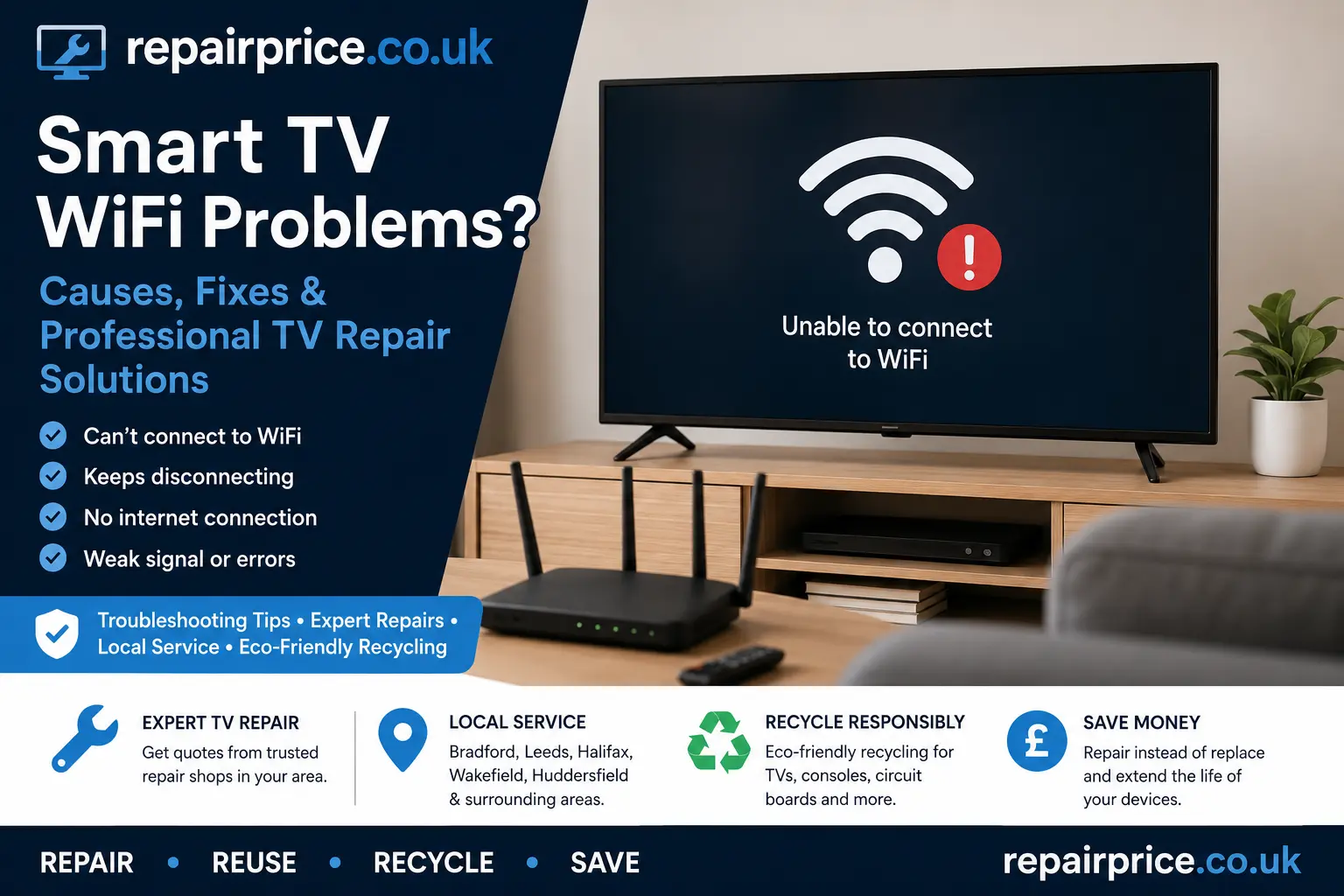
Smart TV WiFi Problems: Causes, Fixes and Professional TV Repair Options
A smart TV that will not connect to WiFi can quickly lose many of the features that make it useful. Streaming applications may stop loading, software updates may fail, screen-sharing functions can become unavailable, and online services may repeatedly disconnect. In some cases, the television connects to the router but displays messages such as “No internet connection”, “Unable to connect to network” or “WiFi connected without internet”.
Smart TV WiFi problems can be caused by the television, the router, the internet provider, incorrect network settings or a failing internal component. This guide explains how to identify the likely cause, which checks are safe to carry out at home, when professional repair may be needed and when recycling an uneconomical television could be the more responsible option.
Get Help with a Smart TV WiFi Fault
If your television continues to lose its wireless connection after basic troubleshooting, request assistance from participating repair businesses. Describe the TV brand, model number, displayed error message and the checks you have already completed so repair shops can assess the likely fault more accurately.
Request a Smart TV WiFi Repair Quote
Discuss Your Smart TV WiFi Problem on WhatsApp
Why Does a Smart TV Keep Disconnecting from WiFi?
A television may disconnect because the wireless signal reaching it is weak or unstable. Walls, floors, furniture, appliances and the distance between the TV and router can all reduce signal quality. The problem may become more noticeable when several phones, laptops, consoles and other connected devices are using the same network.
Incorrect network information can also prevent a reliable connection. A saved password may be outdated, the TV may have retained corrupted network settings, or an automatic IP address may not have been assigned correctly. Restarting the relevant equipment and reconnecting to the network often clears temporary communication errors.
Hardware faults are another possibility. Smart televisions usually contain a wireless module or WiFi circuitry connected to the main board. If the module, antenna, connector or main board develops a fault, the TV may stop detecting networks, show a very weak signal or disconnect repeatedly even when other devices work correctly.
Check Whether the TV or Internet Connection Is at Fault
Before changing advanced settings, check whether another device can connect to the same WiFi network. Try loading a website or streaming a video on a phone or laptop while standing close to the television. If every device is offline, the problem is more likely to involve the router, broadband connection or internet provider.
If other devices work normally but the television does not, focus on the TV and its connection settings. You can also connect the television to a mobile hotspot for a brief test. A successful hotspot connection suggests that the TV wireless hardware is functioning and that the original router or network configuration may be responsible.
Do not use a mobile hotspot for long periods without checking your data allowance. Streaming high-definition or ultra-high-definition video can consume a substantial amount of mobile data.
Restart the TV and Router Correctly
A proper power restart can resolve temporary network errors that are not cleared when equipment is placed into standby. Turn the television off, unplug it from the mains and leave it disconnected for several minutes. Restart the router separately and wait until its internet and wireless indicators have returned to their normal state.
Reconnect the television only after the router has completed its startup process. Open the TV network menu, select the wireless network and test the connection again. Avoid repeatedly switching the router on and off because this can delay reconnection or trigger automated line-management systems used by some broadband providers.
Forget the Saved WiFi Network
A saved network profile can become corrupted or retain an old password. Use the television’s network menu to forget or delete the existing connection, then search for available networks and reconnect manually. Enter the password carefully, paying attention to capital letters, numbers and similar-looking characters.
If your router broadcasts separate 2.4GHz and 5GHz networks, test both where supported. A 5GHz connection can offer higher speeds at shorter distances, while 2.4GHz often reaches farther and may pass through walls more effectively. Older smart televisions may support only 2.4GHz WiFi.
Move the Router or Reduce Wireless Interference
A router hidden behind furniture, positioned on the floor or placed inside a cupboard may provide poor coverage. Where practical, place it in an open and elevated position. Avoid locating it directly beside microwaves, cordless-phone bases, large metal objects or other equipment that can interfere with wireless communication.
If moving the router is not possible, a properly configured mesh WiFi system or access point may improve coverage. However, range extenders can sometimes create additional network complications if they are installed incorrectly. Confirm that the television is connecting to the intended access point rather than a weak or distant network node.
Test the Television with an Ethernet Cable
Many smart televisions include an Ethernet port for a wired network connection. If the TV works normally when connected directly to the router, the broadband service and most of the television’s internet functions are probably operating correctly. This points more strongly toward a wireless signal, configuration, antenna or WiFi-module issue.
A wired connection can also provide a stable long-term solution where running a cable is practical. Nevertheless, if a television is supposed to support WiFi and the wireless feature has failed, professional diagnosis may still be worthwhile, especially when the TV is relatively new or used in a location where cabling is inconvenient.
Check the Date, Time and Software Settings
An incorrect date or time can interfere with secure online connections and cause streaming applications to reject requests. Confirm that the TV is using automatic time settings or that the date, time and regional information have been entered correctly.
Outdated software can also create compatibility issues with routers, streaming services and security standards. Check the manufacturer’s support menu for available updates. When WiFi is unavailable, some television models allow firmware to be downloaded on a computer and installed using a USB drive. Follow the manufacturer’s instructions exactly because installing the wrong software can stop the television from operating correctly.
Customers with another device that is also malfunctioning can compare relevant support options through the laptop repair service, particularly when a computer cannot access the same network. If only the television is affected, the fault is more likely to be specific to the TV.
Reset the TV Network Settings
Many televisions provide an option to reset network settings without erasing every personal preference. This can clear incorrect DNS information, failed IP assignments and damaged connection profiles. After completing the reset, reconnect to the wireless network and test several online features.
A full factory reset should normally be treated as a later troubleshooting step. It can remove installed applications, account logins, channel settings and picture adjustments. Record important settings before continuing and make sure you know the login details for any streaming services that will need to be restored.
Try Automatic and Manual DNS Settings
The Domain Name System helps connected devices locate online services. A smart TV may appear connected to WiFi while applications fail because the DNS request is not completing correctly. Switching back to automatic DNS settings can resolve problems caused by an old manual configuration.
Some televisions also allow a manual DNS address to be entered for testing. Only use details from a trusted provider and make a note of the original settings before changing anything. If you are unsure, allow a repair technician or network professional to assess the connection rather than making repeated advanced changes.
Common Smart TV WiFi Error Symptoms
The way the fault appears can help narrow down the cause. A TV that cannot see any wireless networks may have disabled WiFi settings, incompatible network frequencies, an antenna issue or a failed wireless module. A television that sees the router but cannot connect may have an incorrect password, security-setting conflict or IP-address problem.
If the TV connects but streaming repeatedly buffers, the issue may involve limited broadband speed, weak signal strength, network congestion or an application fault. A television that loses its connection after warming up could have an intermittent module, connector, power-supply or main-board issue.
For a broader overview of symptoms such as sound loss, picture faults, startup problems and intermittent operation, read the guide to frequent television faults and their possible causes.
Could the Smart TV Main Board Be Faulty?
The main board manages many of a smart television’s core functions, including external inputs, software processing, audio control and network communication. On some models the WiFi circuitry is integrated into the main board, while others use a separate wireless module connected by a cable.
A main-board problem may be suspected when WiFi failure appears alongside frozen menus, restarting, missing applications, HDMI faults or software crashes. However, similar symptoms can be caused by firmware corruption, power instability or a separate network module. Accurate testing is important before expensive components are replaced.
Learn more about board-level symptoms and repair decisions in the detailed TV main board diagnosis and repair guide.
Brand-Specific Smart TV WiFi Problems
Different manufacturers use different menus, operating systems and network components. Error messages and reset procedures can therefore vary between television brands and model generations.
Owners of compatible Samsung models can explore help through the Samsung television repair information page. Samsung WiFi faults may involve saved network settings, Smart Hub software, wireless modules or main-board communication.
For Bravia and other Sony models, visit the Sony TV fault and repair service page. Depending on the model, checks may include restarting Android TV or Google TV services, updating system software and testing the network connection.
Customers experiencing connection problems on an LG television can review the LG smart TV repair support page. Some LG models may experience issues involving WebOS settings, wireless modules, antennas or internal board connections.
When Is Professional TV Repair Recommended?
Professional diagnosis should be considered when the television cannot detect any networks, repeatedly disconnects after all settings have been reset, works only when placed very close to the router or displays network faults alongside other operational problems.
A technician may inspect the antenna, wireless module, connectors, software condition, power rails and main board. Testing the TV before ordering components helps reduce unnecessary replacement costs. Internal television repairs should not be attempted without suitable knowledge because dangerous voltages can remain inside the set even after it has been unplugged.
The central TV repair comparison and quotation service can help customers submit their television details to participating businesses and compare available responses.
Check Other Connected Devices
A television may appear faulty when another connected device is causing the interruption. Streaming boxes, game consoles, wireless speakers and HDMI control systems can sometimes freeze or interfere with normal operation. Disconnect non-essential accessories, restart the television and test its built-in applications separately.
If the WiFi fault appears while using a gaming system, compare the available game console repair options. A console that cannot connect independently may have its own network fault rather than a problem caused by the television.
You can also test the same network using a mobile device. Where the handset has charging, screen or connectivity issues of its own, the mobile phone repair service provides a route for requesting support from repair businesses.
Smart TV WiFi Repair Services in West Yorkshire
Customers in Bradford can use the Bradford television repair quotation page to seek assistance with smart TV connectivity, board faults, power problems and other common symptoms.
For televisions located in Leeds and nearby districts, the Leeds TV repair comparison page provides a local route for describing the WiFi issue and receiving responses from participating repair shops.
Customers seeking support around Calderdale can visit the Halifax smart television repair page and provide the manufacturer, model number and connection symptoms.
For faults in Wakefield and surrounding communities, use the Wakefield TV repair service page to request help with network modules, internal boards and related television problems.
Television owners in Kirklees can explore the Huddersfield television repair quotation service for smart TV WiFi diagnosis and other repair requirements.
Should You Repair or Replace a TV with WiFi Problems?
A WiFi fault does not automatically mean that the television must be replaced. If the screen, backlight, sound system and other functions remain in good condition, replacing a wireless module, reconnecting an antenna or repairing the main board may extend the useful life of the set.
Consider the TV’s age, original quality, screen condition, expected repair cost and availability of replacement parts. An inexpensive external streaming device or wired Ethernet connection may provide a practical alternative when the display remains reliable but an internal WiFi repair is not cost-effective.
For a structured comparison of cost, condition, efficiency and expected lifespan, read the guide explaining whether to repair or replace a faulty television.
Recycle an Uneconomical or Unrepairable Television
If the television has several major faults, a damaged panel or a repair cost that exceeds its realistic value, responsible recycling may be preferable to disposal with general household waste. Televisions contain electronic boards, metals, plastics, wiring and other materials that should be processed through appropriate recycling channels.
Visit the electrical device recycling information hub to review available recycling routes. Always remove personal account information where possible and sign out of streaming services before handing over a smart television or connected device.
Old streaming boxes and gaming systems may also be suitable for processing through the console and gaming equipment recycling service. Keeping connected electronics out of general waste can help recover reusable materials and reduce unnecessary disposal.
TV Circuit Board Recycling
Television main boards, power boards, control boards and other printed circuit boards contain recoverable materials. Businesses, repair shops and organisations with separated TV boards can learn more through the specialist TV circuit board recycling page.
Network equipment, communication hardware and related electronic boards may require a different recycling stream. The telecommunications circuit board recycling service explains options for suitable telecom and connectivity equipment.
How to Describe a Smart TV WiFi Fault
Providing accurate information can help a repair business assess the problem. Include the television manufacturer, full model number, approximate age and the exact error message. Explain whether the TV detects the router, whether it connects to a mobile hotspot and whether an Ethernet connection works.
You should also mention whether the issue began after a software update, router replacement, power cut or change of broadband provider. Describe any other symptoms, such as freezing menus, repeated restarting, failed HDMI ports or applications closing unexpectedly.
Final Advice for Smart TV Connection Problems
Start with simple checks: confirm that other devices can access the internet, restart the router and television, forget the saved network and reconnect using the correct password. Test both available WiFi bands where supported, check the date and time, install approved software updates and try an Ethernet cable.
When these steps do not resolve the problem, avoid replacing internal components without proper testing. A repair technician can determine whether the fault involves the router configuration, wireless module, antenna, firmware or main board. If repair is uneconomical, use an appropriate recycling route so the television and its electronic components can be handled responsibly.